A 27-inch 1440p monitor provides a pixel density of approximately 109 pixels per inch (PPI), which is generally considered excellent for most users, offering a significant upgrade in sharpness over 1080p on the same screen size. This 27 inch 1440p pixel density hits a sweet spot for many, balancing crisp visuals with reasonable GPU demands. However, the "best" pixel density is subjective and depends heavily on your viewing distance, personal preference for text scaling, and primary use cases. For some, 109 PPI on a 27-inch 1440p display might require slight scaling to avoid eye strain, while others find it perfectly crisp without any adjustments. Let's break down what this 27 inch 1440p pixel density truly means for your daily use and whether it's the right choice for you.
⚡ Quick Verdict:
- ✅ Yes for most users seeking a sharp, productive, and immersive gaming experience.
- ⚠️ Maybe if you sit extremely close (under 20 inches) or prefer very large text without scaling.
- ❌ No if you're accustomed to Retina displays (200+ PPI) and demand absolute pixel invisibility.
- 👉 Key Factor: 109 PPI on a 27-inch 1440p monitor is a widely praised balance of sharpness and performance.
Understanding Pixel Density (PPI) and Why It Matters
Before we delve into the specifics of a 27-inch 1440p display, it's crucial to understand what pixel density, or Pixels Per Inch (PPI), actually represents. PPI measures the number of pixels packed into every linear inch of a screen. The higher the PPI, the more pixels are crammed into a smaller area, resulting in a sharper, more detailed image where individual pixels are less discernible.
Why does PPI matter? It directly impacts the visual fidelity of your display. A higher PPI means:
- Crisper Text: Text appears smoother and easier to read, reducing eye strain during long work sessions.
- Sharper Images: Photos and videos show more fine detail, making them look more realistic and immersive.
- Smoother Lines: Diagonal and curved lines appear less "jagged" or pixelated, especially noticeable in games and graphic design.
- Increased Workspace: While resolution dictates the total number of pixels, a higher PPI on a given screen size often allows you to view more content without it appearing too small, assuming appropriate scaling.
The "ideal" PPI is a personal preference, influenced by factors like your typical viewing distance, visual acuity, and the type of content you consume. For instance, a graphic designer might prioritize a very high PPI for intricate detail work, while a gamer might balance PPI with refresh rate and response time.
Calculating the 27 inch 1440p Pixel Density
Let's do the math for a 27-inch 1440p monitor. The resolution "1440p" typically refers to 2560 pixels horizontally by 1440 pixels vertically. The screen size "27 inches" refers to the diagonal measurement of the display.
To calculate PPI, we first need to find the diagonal resolution in pixels. We use the Pythagorean theorem: $Diagonal_Resolution = \sqrt{Width^2 + Height^2}$ $Diagonal_Resolution = \sqrt{2560^2 + 1440^2}$ $Diagonal_Resolution = \sqrt{6,553,600 + 2,073,600}$ $Diagonal_Resolution = \sqrt{8,627,200}$ $Diagonal_Resolution \approx 2937.21$ pixels
Now, divide this diagonal resolution by the screen's diagonal size in inches: $PPI = \frac{Diagonal_Resolution}{Screen_Size_in_Inches}$ $PPI = \frac{2937.21}{27}$ $PPI \approx 108.78$
So, the 27 inch 1440p pixel density is approximately 109 PPI. This is a commonly cited and highly regarded pixel density for desktop monitors.
You can easily calculate PPI for any screen size and resolution using our dedicated PPI Calculator. For specific 1440p resolutions, you can even jump directly to our 1440p PPI calculation page.
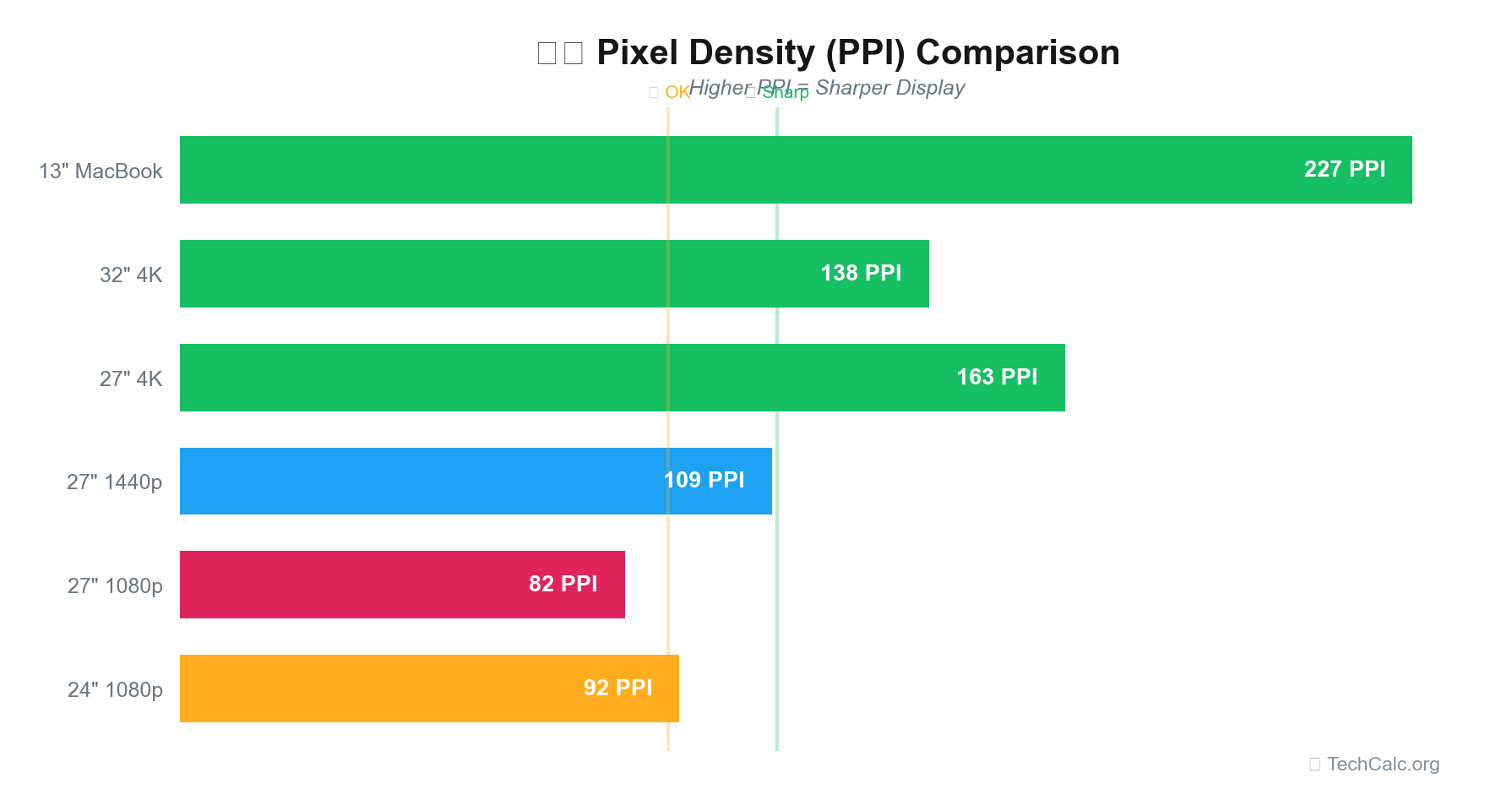
Here's how a 27-inch 1440p monitor's PPI compares to other common monitor configurations:
| Monitor Size | Resolution | PPI (Approx.) | Notes |
|---|---|---|---|
| 24-inch | 1080p | 92 | Common, but pixels visible up close. |
| 27-inch | 1080p | 82 | Lower density, often considered too low for sharpness. |
| 27-inch | 1440p | 109 | Excellent balance, widely recommended. |
| 32-inch | 1440p | 92 | Same PPI as 24-inch 1080p, good for distant viewing. |
| 27-inch | 4K (2160p) | 163 | Very sharp, often requires scaling, higher GPU demand. |
| 32-inch | 4K (2160p) | 138 | Great for 4K without aggressive scaling. |
What is the PPI of a QHD 27-inch monitor?
A QHD (Quad High Definition) monitor is synonymous with a 1440p monitor. Both terms refer to a resolution of 2560 x 1440 pixels. Therefore, the PPI of a QHD 27-inch monitor is exactly the same as a 1440p 27-inch monitor, which is approximately 109 PPI.
QHD offers four times the pixels of 720p (HD) and 1.78 times the pixels of 1080p (Full HD). This significant increase in pixel count, combined with the 27-inch screen size, results in a very respectable pixel density that provides clear, detailed images without requiring aggressive scaling in most operating systems. For many, this 27 inch 1440p pixel density is the ideal upgrade from a 1080p display.
What is the best DPI for a 1440p 27-inch monitor?
When discussing monitor sharpness, "DPI" (Dots Per Inch) is often used interchangeably with "PPI" (Pixels Per Inch). While DPI technically refers to print resolution or mouse sensitivity, in the context of displays, most people mean PPI.
For a 1440p 27-inch monitor, the inherent pixel density is 109 PPI. There isn't a single "best" DPI/PPI, as it depends on your individual preferences and viewing habits. However, 109 PPI is widely considered to be an excellent balance for several reasons:
- Reduced Pixelation: At typical desktop viewing distances (20-30 inches), individual pixels are generally imperceptible, leading to smooth text and crisp images.
- Minimal Scaling Needed: Unlike 4K on a 27-inch display (which has 163 PPI and almost always requires 125-150% scaling), 109 PPI usually looks good at 100% (no scaling) in Windows or macOS. This means you get maximum screen real estate without objects appearing too tiny. Some users might prefer 125% scaling for slightly larger text, but it's often not strictly necessary.
- Performance Balance: Driving a 1440p resolution requires less graphical horsepower than 4K, allowing for higher frame rates in games, especially with high refresh rate monitors. This makes a 27-inch 1440p monitor a popular choice for gamers seeking a balance between visual quality and performance.
So, while 109 PPI is the fixed pixel density, the "best" experience often comes from using it with 100% or 125% scaling, depending on your comfort.
Is 82 PPI good for a 27-inch monitor?
An 82 PPI (Pixels Per Inch) density on a 27-inch monitor typically corresponds to a 1080p (1920x1080) resolution. To calculate this: $Diagonal_Resolution = \sqrt{1920^2 + 1080^2} = \sqrt{3,686,400 + 1,166,400} = \sqrt{4,852,800} \approx 2202.9$ pixels $PPI = \frac{2202.9}{27} \approx 81.59$ PPI
So, is 82 PPI "good" for a 27-inch monitor? The answer is generally no, not for most users at typical desktop viewing distances.
Here's why:
- Visible Pixels: At a standard viewing distance of 2-3 feet, individual pixels on an 82 PPI display are often quite noticeable. This can lead to jagged text, blurry images, and a less immersive experience, especially if you're used to higher-density screens.
- Less Crispness: Compared to the 109 PPI of a 27-inch 1440p monitor, an 82 PPI display will look significantly less sharp. Text and fine details will not be as clear.
- Limited Screen Real Estate: While 1080p is a standard resolution, on a 27-inch screen, it can feel like there isn't enough workspace compared to 1440p. You'll have fewer windows open side-by-side comfortably without constantly switching.
However, there are niche scenarios where 82 PPI might be acceptable:
- Very Long Viewing Distances: If you're using the monitor as a TV from across a room, the lower PPI becomes less of an issue.
- Budget Constraints: 27-inch 1080p monitors are typically more affordable.
- Specific Gaming Setups: Some competitive gamers prioritize refresh rate and response time over absolute pixel density, and 1080p is easier for GPUs to drive at very high frame rates.
For general productivity, media consumption, and a balanced gaming experience, the 27 inch 1440p pixel density (109 PPI) is a far superior choice to 82 PPI on the same screen size.
Is 1440p 2K or 3K?
This is a common point of confusion, and the naming conventions for resolutions can be inconsistent.
-
1440p is generally considered "2K", though it's not a perfect match.
- True DCI 2K resolution is 2048 x 1080 pixels.
- 1440p (2560 x 1440) has more horizontal pixels than DCI 2K.
- However, in common marketing terms, any resolution with a horizontal pixel count around 2000 is often loosely referred to as "2K." Since 1440p is a significant step up from 1080p and falls short of 4K, "2K" has become its de facto, albeit imprecise, designation.
-
1440p is definitely not "3K."
- "3K" typically refers to resolutions with a horizontal pixel count around 3000, such as 3072 x 1728 or 3200 x 1800. These are less common for monitors.
So, when you hear "2K monitor," it's most likely referring to a 1440p display. This applies to the 27 inch 1440p pixel density we're discussing; it's considered a 2K resolution experience.
The Sweet Spot: Is 109 PPI on a 27-inch 1440p Monitor Enough for You?
The 109 PPI offered by a 27-inch 1440p monitor is often hailed as a "sweet spot" for desktop computing. Let's explore why it's so popular across different use cases:
For Gaming
The 27 inch 1440p pixel density is arguably the most popular choice for PC gaming enthusiasts.
- Visual Fidelity: It offers a noticeable visual upgrade over 1080p, making game worlds look much more detailed and immersive without the "jaggies."
- Performance: While demanding more from your GPU than 1080p, 1440p is significantly easier to drive at high frame rates (120Hz, 144Hz, 165Hz+) compared to 4K. This balance allows gamers to enjoy crisp visuals and smooth gameplay simultaneously, which is crucial for competitive and immersive experiences.
- Viewing Distance: At typical gaming distances (2-3 feet), the 109 PPI ensures pixels are largely invisible, keeping you immersed in the game without distraction.
For Productivity and Work
For office work, programming, content creation, and general browsing, the 27 inch 1440p pixel density offers substantial benefits.
- Screen Real Estate: With 2560x1440 pixels, you gain significantly more workspace than 1080p. This allows you to comfortably place multiple windows side-by-side, view larger spreadsheets, or have more tools visible in creative applications without constantly scrolling or minimizing.
- Text Clarity: Text is notably sharper and more defined than on a 1080p 27-inch monitor. This reduces eye strain during long hours of reading and writing. As mentioned, most users find 100% or 125% scaling perfect for text on this display.
- Image Detail: For photographers and graphic designers, the increased pixel density means finer details in images are more apparent, leading to more precise editing.
For Media Consumption
Watching movies, TV shows, or browsing high-resolution images on a 27-inch 1440p display is a pleasure.
- Immersive Experience: The larger screen size combined with the crisp 109 PPI makes for an engaging viewing experience.
- Content Availability: While 4K content is becoming more common, 1440p content is also widely available, and even 1080p content scales up gracefully on a 1440p screen due to the pixel density.
Impact of Viewing Distance
The perceived sharpness of a display is heavily influenced by how far you sit from it.
- Closer Viewing (18-24 inches): At very close distances, some users might start to discern individual pixels, especially if they have very good eyesight. For these users, a slight OS scaling (e.g., 125%) might be beneficial, or they might consider a 4K 27-inch monitor if budget and GPU allow for 150%+ scaling.
- Standard Viewing (24-30 inches): This is the sweet spot for 109 PPI. At this range, the 27 inch 1440p pixel density provides excellent clarity with virtually imperceptible pixels, making it ideal for most tasks.
- Further Viewing (30+ inches): As you move further away, the benefits of higher PPI diminish, and even lower PPI displays can appear sharp. However, for a desktop monitor, this distance is less common.
Here's a general guide for comfortable viewing based on PPI:
| PPI Range | Optimal Viewing Distance (Approx.) | Typical Use Case |
|---|---|---|
| 80-90 | 30+ inches | Large TVs, casual desktop |
| 100-120 | 20-30 inches | Standard desktop (27-inch 1440p) |
| 130-150 | 18-24 inches | Productivity, light scaling needed |
| 160+ | 15-20 inches | Retina-like displays, aggressive scaling |
Optimizing Your 27-inch 1440p Experience
To get the most out of your 27-inch 1440p monitor with its 109 PPI, consider these optimization tips:
- Adjust Windows/macOS Scaling:
- Windows: Go to
Settings > System > Display. Under "Scale and layout," you'll see a percentage. For 109 PPI, 100% is often fine, but try 125% if you find text too small. - macOS: In
System Settings > Displays, choose "Scaled" and experiment with the options. macOS handles scaling very well, often making the 109 PPI feel even sharper.
- Windows: Go to
- Ensure Proper GPU: A modern mid-range to high-end graphics card (e.g., NVIDIA RTX 3060/4060 or AMD RX 6700 XT/7700 XT and above) is recommended to drive 1440p content smoothly, especially for gaming at high refresh rates.
- Use DisplayPort (DP) or HDMI 2.0+: Ensure your monitor is connected with a cable that can support the full 1440p resolution at your desired refresh rate. DisplayPort is generally preferred for high refresh rates.
- Calibrate Your Monitor: Use your monitor's OSD (On-Screen Display) settings or a calibration tool to adjust brightness, contrast, and color temperature for optimal viewing comfort and accuracy.
Beyond the Numbers: The Visual Experience
While numbers like 27 inch 1440p pixel density give us objective metrics, the actual visual experience is subjective. The perceived sharpness also depends on the quality of the monitor panel itself (IPS, VA, TN), its contrast ratio, color accuracy, and anti-glare coatings.
A high-quality IPS panel with excellent color reproduction will make that 109 PPI look even better, providing a vibrant and immersive picture. Conversely, a poor-quality panel, even with a technically good PPI, might suffer from washed-out colors or poor viewing angles, detracting from the overall experience.
Many users upgrading from a 24-inch 1080p monitor to a 27-inch 1440p display report a significant and very welcome improvement in sharpness and screen real estate. The difference in 27 inch 1440p pixel density (109 PPI) compared to a 24-inch 1080p monitor (92 PPI) is noticeable, but the larger jump from a 27-inch 1080p (82 PPI) is truly transformative.
Conclusion
The 27 inch 1440p pixel density of 109 PPI strikes an excellent balance for most desktop users in 2026. It offers a substantial upgrade in sharpness and screen real estate over 1080p, provides crisp text and detailed images, and is a fantastic resolution for gaming without overly taxing your graphics card. While those who sit extremely close or demand Retina-level pixel invisibility might consider 4K, for the vast majority, this configuration provides a premium visual experience that enhances both productivity and entertainment.
To explore how different resolutions and screen sizes impact pixel density, or to calculate the PPI for your own specific setup, be sure to use our comprehensive PPI Calculator at TechCalc. Understanding these metrics empowers you to make an informed decision for your next monitor purchase.