Yes, understanding your monitor's DPI (Dots Per Inch) is crucial for an optimal viewing experience in 2025 — it directly impacts image sharpness, text clarity, and overall visual quality. But here's the catch that many display manufacturers don't emphasize: a higher DPI isn't always better if your viewing distance and GPU can't keep up. This article will explain exactly what monitor DPI means, how to use a monitor DPI calculator, and why finding your screen's sweet spot is more important than chasing the highest numbers.
⚡ Quick Verdict:
- ✅ Yes for sharper images, clearer text, and better visual fidelity.
- ⚠️ Maybe for competitive gaming or if your GPU struggles with high resolutions.
- ❌ No if you sit far from your screen or prioritize raw refresh rates over pixel density.
- 👉 Key Factor: Optimal PPI depends on screen size, resolution, and viewing distance.
What Exactly is Monitor DPI (and PPI)?
When discussing displays, the terms "DPI" (Dots Per Inch) and "PPI" (Pixels Per Inch) are often used interchangeably, leading to some confusion. Technically, PPI is the more accurate term for screens.
- PPI (Pixels Per Inch): This measures the density of pixels on a digital display. It tells you how many individual pixels are packed into a single linear inch of screen space. The higher the PPI, the more pixels are crammed into each inch, resulting in a smoother, sharper image where individual pixels are less visible.
- DPI (Dots Per Inch): This term originated in printing, referring to the number of ink dots a printer places on a physical inch of paper. While technically distinct, it has become common parlance to refer to screen pixel density as "monitor DPI" or "display DPI." For the purpose of this article, we'll use "DPI" and "PPI" to mean the same thing when referring to screen density, much like the popular usage reflected in the term "monitor dpi calculator."
Understanding this distinction is the first step to truly optimizing your display settings. A higher PPI means a more detailed image, which is especially noticeable when viewing text, intricate graphics, or high-resolution photos.
Why is Your Monitor's DPI Important?
Your monitor's DPI directly influences your visual experience. It's not just about having "more pixels"; it's about how those pixels are presented to your eyes.
- Image Sharpness and Clarity: Higher PPI means pixels are smaller and closer together. This reduces the "screen door effect" (where you can see the individual pixel grid) and makes images appear smoother, with crisper lines and more subtle color gradations. Text is also significantly sharper, reducing eye strain during long reading sessions.
- Viewing Distance: The ideal PPI is heavily influenced by how far you sit from your monitor. A large 4K TV might have a relatively low PPI compared to a smartphone, but because you view it from across the room, the individual pixels are still imperceptible. For a desk monitor, where you're typically 2-3 feet away, a higher PPI is generally preferred.
- Scaling and User Interface (UI): On very high PPI monitors (like 4K on a 27-inch screen), everything can appear tiny without proper scaling. Operating systems like Windows and macOS use UI scaling to make text and icons readable. However, not all applications scale perfectly, which can sometimes lead to blurry elements or inconsistent UI sizes.
- Gaming and Media Consumption: For gamers, higher PPI means more detailed game worlds, but it also demands significantly more GPU power to render those extra pixels at acceptable frame rates. For media enthusiasts, high PPI enhances the immersion of 4K or 8K content, making every detail pop.
How to Use a Monitor DPI Calculator (TechCalc's Tool)
Calculating your monitor's DPI or PPI is straightforward, and our dedicated tool makes it even easier. You don't need to be a math wizard to figure out your screen's pixel density.
To use a monitor dpi calculator, you typically need two pieces of information:
- Horizontal Resolution (pixels): The number of pixels across the width of your screen (e.g., 3840 for 4K).
- Vertical Resolution (pixels): The number of pixels down the height of your screen (e.g., 2160 for 4K).
- Diagonal Screen Size (inches): The physical measurement of your monitor from one corner to the opposite corner (e.g., 27 inches).
Here's how our /ppi-calculator works:
- Input Your Monitor's Resolution: Enter the horizontal and vertical pixel counts. For instance, if you have a 1440p monitor, you'd input 2560 and 1440.
- Enter Your Diagonal Screen Size: Input the diagonal measurement in inches.
- Get Your PPI: The calculator instantly provides your monitor's PPI, along with other useful metrics like total megapixels and aspect ratio.
Our tool is designed to give you precise results, helping you understand the true pixel density of your display. Whether you're comparing new monitors or just curious about your current setup, our monitor dpi calculator is an invaluable resource.
Understanding the Numbers: What's a Good PPI for Your Monitor?
There's no single "best" PPI, as it depends on your specific use case, screen size, and viewing distance. However, we can identify general ranges that offer excellent experiences for most users.
Let's look at some common resolutions and their resulting PPI on a popular 27-inch monitor:
| Resolution | Horizontal Pixels | Vertical Pixels | Diagonal Size (inches) | Calculated PPI |
|---|---|---|---|---|
| 1080p (Full HD) | 1920 | 1080 | 27 | 81.59 |
| 1440p (QHD) | 2560 | 1440 | 27 | 108.79 |
| 4K (UHD) | 3840 | 2160 | 27 | 163.18 |
| 5K | 5120 | 2880 | 27 | 217.58 |
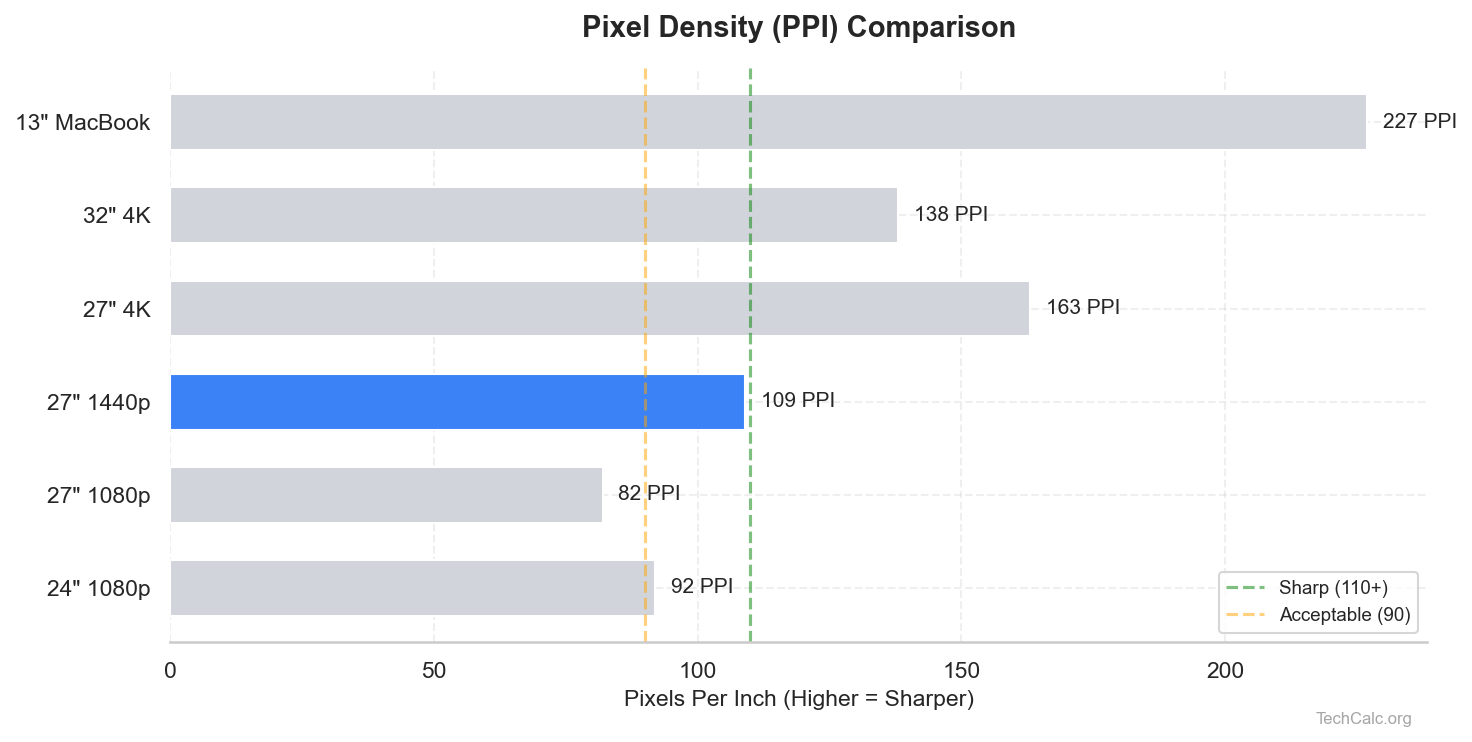
As you can see, the PPI drastically increases with resolution on the same screen size.
General Guidelines for "Good" PPI:
- 80-100 PPI: This range is common for larger monitors (e.g., 27-inch 1080p or 32-inch 1440p). At typical desk viewing distances, individual pixels might be discernible, but it's generally considered acceptable for most tasks, especially if budget or GPU performance is a concern.
- 100-120 PPI: Often considered the sweet spot for many users. A 27-inch 1440p monitor falls into this range, offering a noticeable improvement in sharpness over 1080p without requiring aggressive scaling or a top-tier GPU. Text is crisp, and images are detailed.
- 150+ PPI (High-Density / "Retina-like"): This is where displays start to look incredibly sharp, mimicking the smooth appearance of printed text. Examples include 27-inch 4K monitors or Apple's Retina displays. At these densities, individual pixels are virtually invisible to the naked eye at normal viewing distances. However, operating system scaling becomes essential, and graphical demands on your system increase significantly.
Ultimately, "good" PPI is subjective and depends on your personal preference and how close you sit to the screen.
DPI, Resolution, and Screen Size: The Interplay
It's crucial to understand that DPI isn't just about resolution; it's a combination of resolution and physical screen size.
- Resolution Alone (e.g., 4K): A 4K resolution (3840x2160 pixels) means you have a massive number of pixels.
- Screen Size Alone (e.g., 27-inch): This is the physical dimension of your display.
When you combine them, you get the PPI.
- A 4K resolution on a small 15-inch laptop screen will result in a very high PPI (around 293 PPI).
- The same 4K resolution on a large 65-inch TV will result in a much lower PPI (around 68 PPI).
This is why comparing resolutions alone can be misleading. A 1080p smartphone screen (e.g., 5.5 inches) has a much higher PPI (around 400 PPI) than a 1080p 24-inch monitor (around 92 PPI), making the phone screen appear vastly sharper. The monitor dpi calculator accounts for both factors to give you the true density.
The Myth of "Retina" Displays and PPI
Apple popularized the term "Retina display" to describe screens where individual pixels are indistinguishable to the human eye at a typical viewing distance. This isn't a specific PPI number, but rather a threshold that varies based on the device and its intended viewing distance.
For instance, an iPhone's Retina display might have a PPI of over 300, while a MacBook's Retina display might be closer to 220 PPI, and an iMac's Retina display around 218 PPI. The key is that at their respective viewing distances, the pixels become invisible.
While "Retina" is a marketing term, it highlights the ultimate goal of high PPI: to create an image so smooth and detailed that it mimics print quality. Many modern high-resolution monitors from various brands now achieve "Retina-like" pixel densities, even if they don't use the specific branding. Our monitor dpi calculator can help you determine if a particular display meets your personal "Retina" threshold.
Common PPI Scenarios: Gaming, Productivity, and Media
The ideal PPI differs based on how you use your monitor.
Gaming
- Competitive Gaming: Many competitive gamers prioritize high refresh rates (144Hz, 240Hz, 360Hz) and low response times over raw pixel density. A 24-inch 1080p or 1440p monitor (around 90-120 PPI) is often preferred, as it's easier for GPUs to maintain high frame rates, and the slightly lower PPI is less critical in fast-paced action where you're focused on movement.
- Immersive Gaming: For single-player, story-driven, or graphically rich games, higher PPI (140+ PPI) on a 27-32 inch 4K monitor can significantly enhance immersion. The detailed textures and sharper visuals make game worlds come alive, provided your GPU can handle the resolution.
Productivity
- General Office Work/Coding: For tasks involving a lot of text, a PPI of 100-120 is excellent for clarity and reduced eye strain. A 27-inch 1440p monitor is a popular choice here. Higher PPI (150+) like a 27-inch 4K display is even better, offering incredibly sharp text, but requires careful scaling to ensure UI elements aren't too small.
- Graphic Design/Video Editing: Professionals in these fields often benefit most from very high PPI (150+), as it allows them to see fine details in images and video without needing to zoom in constantly. Color accuracy and panel quality are also paramount.
Media Consumption
- Movies/Streaming: For watching movies and TV shows, a PPI of 80-120 is generally sufficient, especially if you're viewing from a slightly further distance. The quality of the content itself (4K HDR vs. 720p) often has a greater impact than extreme pixel density. Larger screens with lower PPI can still offer a great cinematic experience.
Recommended PPI Ranges by Use Case (Approximate):
| Use Case | Recommended PPI Range | Notes ```
What is a Monitor DPI Calculator and Why Do You Need One in 2025?
In the ever-evolving landscape of display technology, monitors are becoming sharper, larger, and more diverse. With terms like 4K, 8K, QHD, and Ultrawide dominating the market, it's easy to get lost in the jargon. This is where a monitor dpi calculator becomes indispensable.
A monitor DPI calculator is an online tool that helps you determine the pixel density of your screen. Pixel density, often expressed as PPI (Pixels Per Inch) or sometimes loosely as DPI (Dots Per Inch), measures how many pixels are packed into each inch of your display. The higher the PPI, the finer the detail and the sharper the image you'll perceive.
Why is this critical in 2025?
- Growing Resolution Diversity: From ultra-portable laptops to massive desktop monitors and immersive gaming displays, resolutions are more varied than ever. A 4K resolution on a 27-inch monitor looks vastly different from 4K on a 48-inch TV.
- Optimal Viewing Experience: Understanding your monitor's PPI helps you choose the right display for your specific needs, whether it's for professional graphic design, competitive gaming, or casual web browsing. It impacts how crisp text appears, how detailed images look, and even how much eye strain you might experience.
- GPU Demands: Higher PPI often means rendering more pixels, which directly translates to higher demands on your graphics card. Knowing your PPI helps you set realistic expectations for gaming performance and choose a monitor that aligns with your hardware capabilities.
- Personal Preference: What looks sharp to one person might not to another, especially considering individual eyesight and preferred viewing distances. A monitor dpi calculator provides objective data to inform your subjective experience.
In short, a monitor